

How to register with SES.Hospedajes and connect your accommodation
Register your entity and accommodation, find the four values required by the integration and configure Check-in Easy without getting lost in the Ministry portal.
To submit traveller reports automatically, Check-in Easy needs credentials created specifically for the SES.Hospedajes web service. Your Cl@ve or digital certificate is only used to enter the official portal; it is not the username or password you should enter in Check-in Easy.
Use the official Ministry of the Interior portal. The names in this article follow the Ministry's current visual guide, but the interface may change.
Before you start
- Cl@ve access or a valid digital certificate. If you sign with a local certificate, you may also need AutoFirma.
- The holder or representative's tax and contact details, plus the full address and basic details of each accommodation.
- Access to your Check-in Easy account and the property already created in your workspace.
The four values you will need
- Web-service username: shown under “Servicio de comunicación”; it usually ends in
WS. - Web-service password: created in the same section and independent from Cl@ve.
- Landlord code: the entity code in “Mis datos registrados”; it is not your NIF.
- Establishment code: the code assigned to the specific accommodation.
1. Access the establishment and entity register
Open the official procedure and choose “Acceso al registro de establecimientos y entidades”. Identify yourself using Cl@ve or a digital certificate.
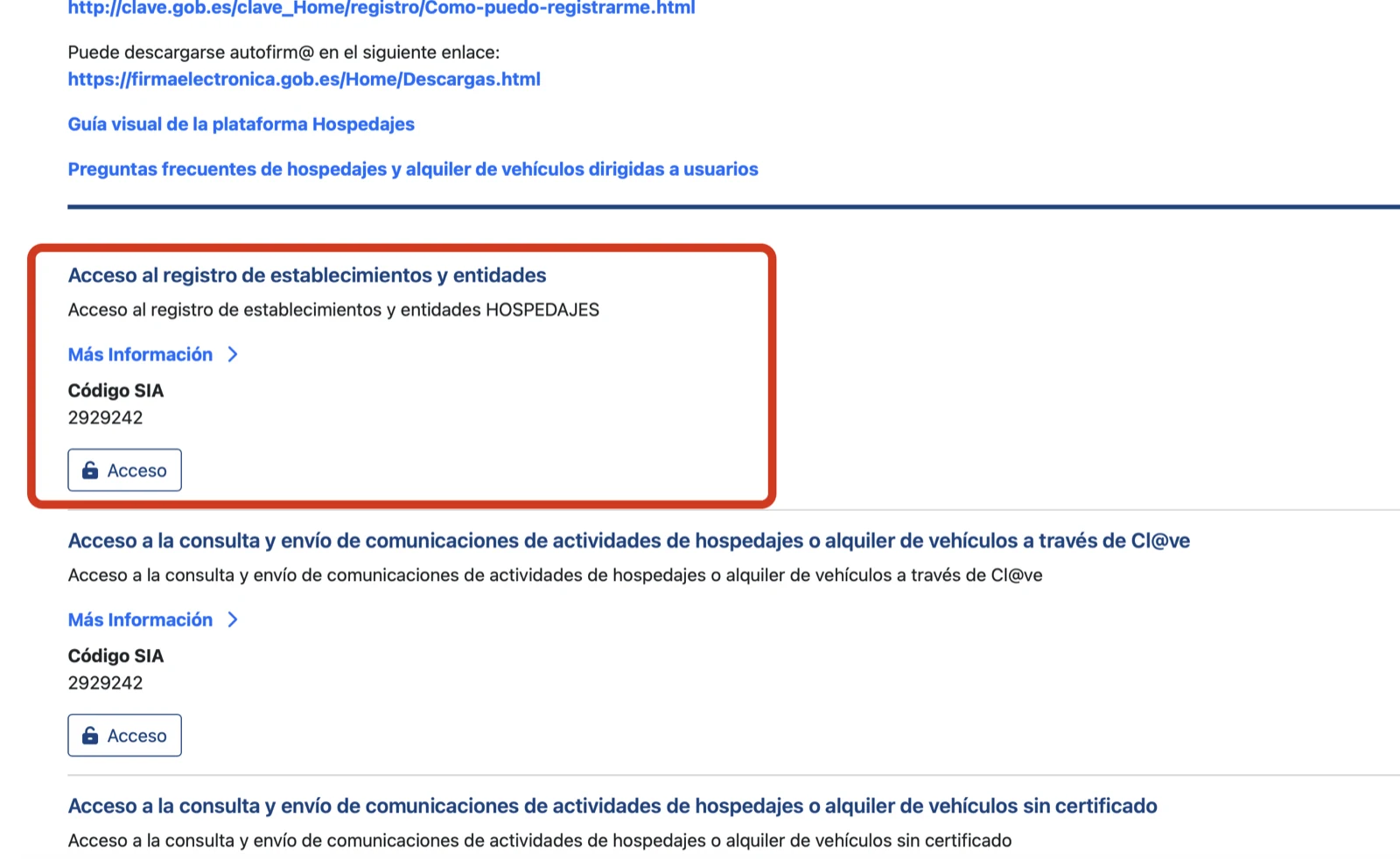
Choose this procedure, rather than either of the options for submitting accommodation activity reports.
After signing in, the home screen displays four areas: entities, establishments, registered details and web-service credentials.
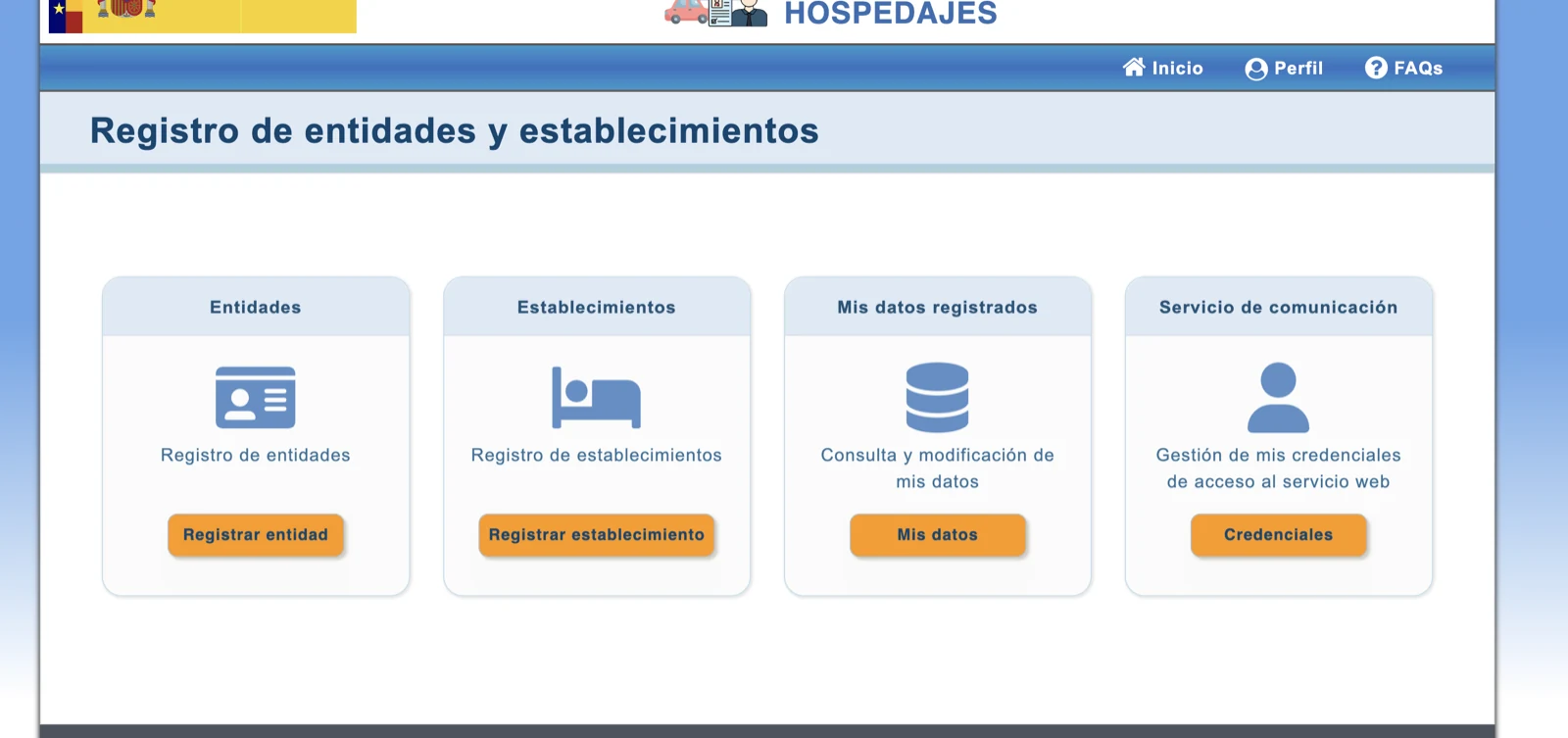
The “Entidades” and “Establecimientos” cards create records; “Mis datos” and “Credenciales” provide the codes and access details needed by the integration.
2. Register the liable entity
Select “Registro de entidades”, complete the form as the holder or representative, review the information, sign it and submit the registration electronically. Save the registration receipt.
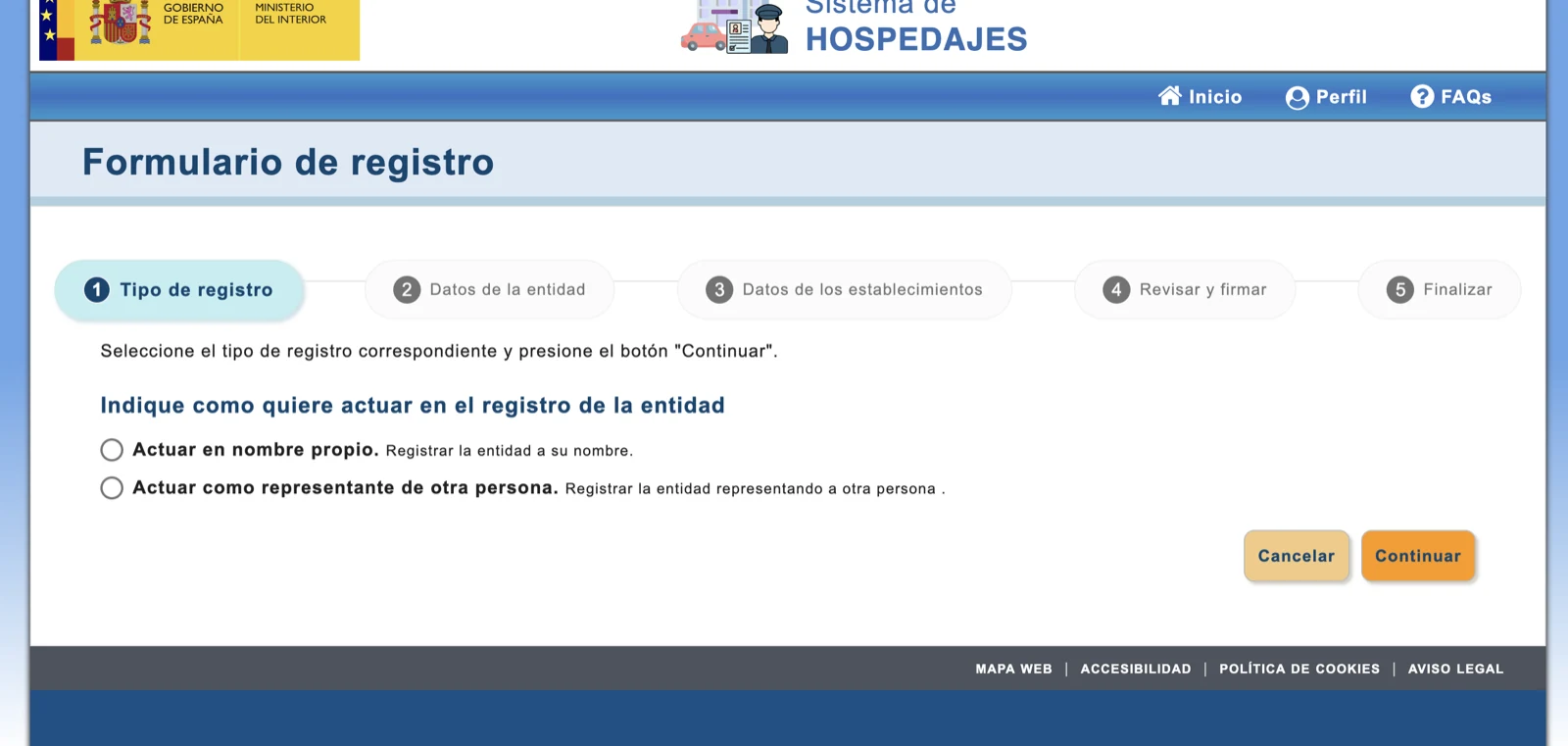
First indicate whether you are acting on your own behalf or representing another person, then complete the remaining steps and sign the registration.
3. Register your accommodation and enable web submissions
Choose “Registro de establecimientos” and enter the accommodation's name, type, contact details and full address. Finish the form. Then open “Mis datos registrados” and check that “Envío de comunicaciones por servicio web” is enabled.
Repeat this registration for every property you want to connect. Each one receives its own establishment code.
4. Copy both codes
In “Mis datos registrados”, copy the company field labelled “Código”: this is the landlord code. Under “Lista de establecimientos”, open the eye icon for the accommodation and copy its “Código”.
Keep all leading zeroes.
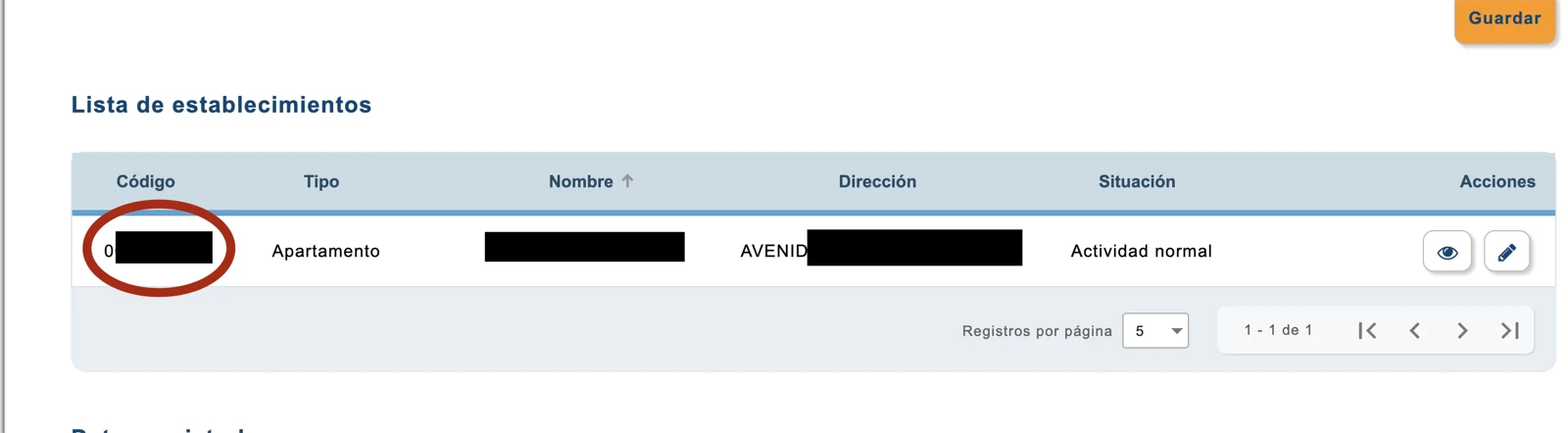
The value in the “Código” column is the establishment code. Copy it exactly, including any leading zeroes.
5. Create the web-service credentials
Open “Gestión de mis credenciales de acceso al servicio web”. Copy the username shown under “Usuario servicio web”, choose “Cambiar contraseña” and create a strong, unique password.
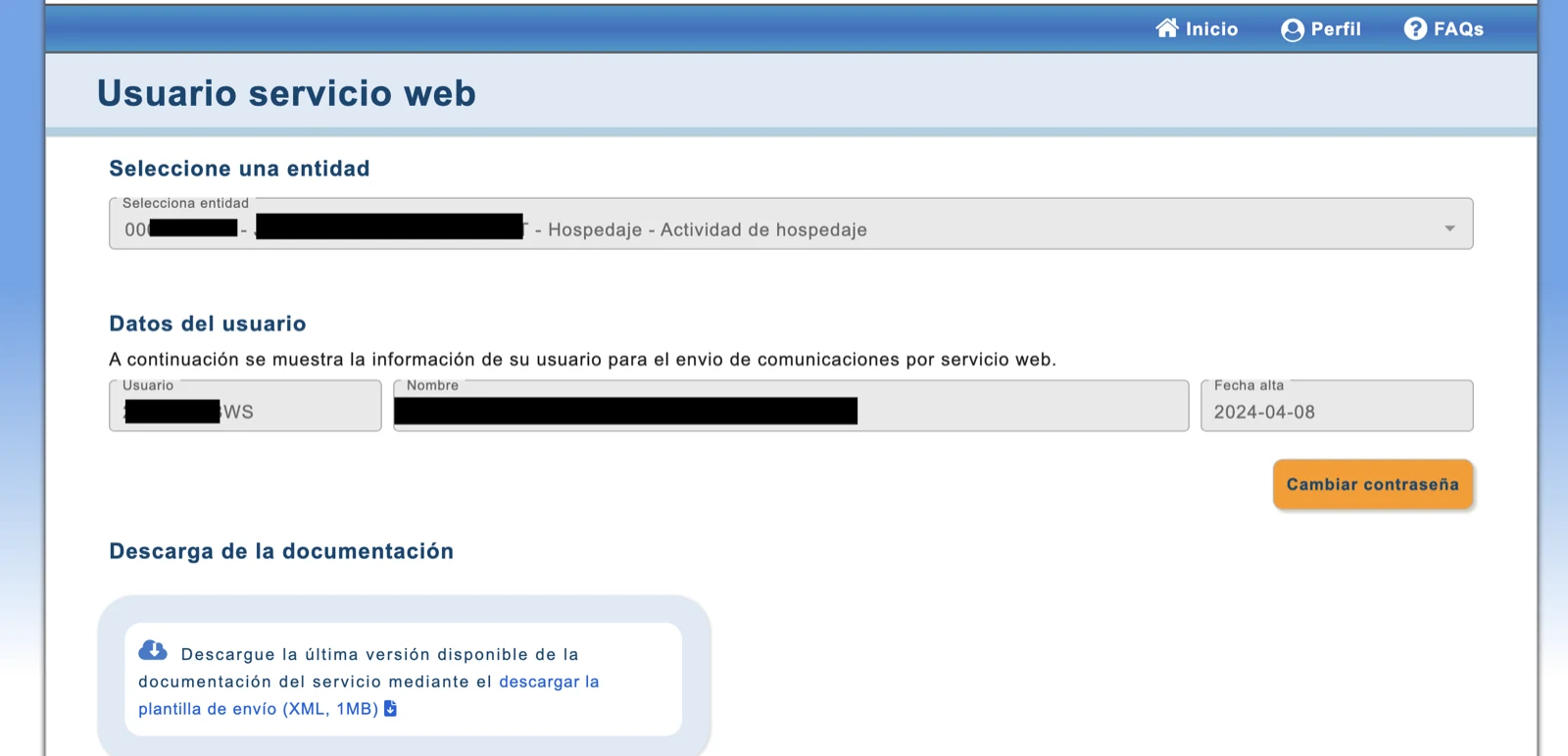
Select the entity, copy the username ending in WS and use “Cambiar contraseña” to create the password for Check-in Easy.
Use this generated username and password in Check-in Easy—not your email, Cl@ve details or certificate password.
6. Connect Check-in Easy
In Check-in Easy, go to Integrations → Authority reporting, add SES.Hospedajes, enter the web-service username, password and landlord code, then assign the property and enter its establishment code. Save and run the connection test.
One set of entity credentials can serve several properties, but each property must use its own establishment code.
Treat the service password as a secret. If you suspect exposure, change it in SES.Hospedajes and update the integration.
This article is informational and does not replace the Ministry's instructions or professional legal advice.
Ready to automate traveller reports?
Add the four SES.Hospedajes values to Check-in Easy, assign the accommodation and test the connection before your next arrival.
Configure the integration